Ananodes - A Model Map for Anaplan
Transform your Anaplan Model into an interactive dependency graph
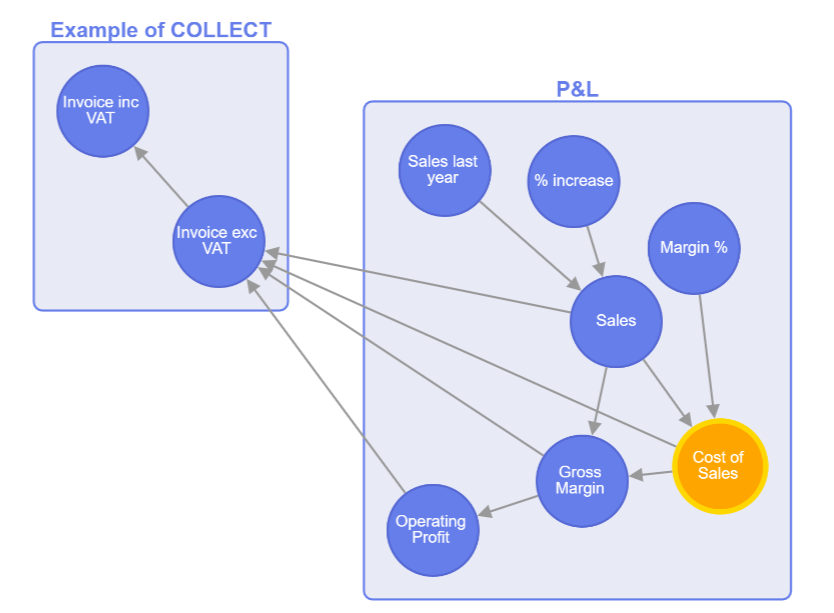
Visualize Line Item relationships across modules to see how it is all connected
Get StartedInstructions
- Upload a CSV with columns: Modules with Line Items, Referenced By, Module Name
- Module names appear as compound nodes (containers)
- Line items are nodes within their modules
- Arrows show the "referenced by" relationships
- Click and drag to pan, scroll to zoom
- Right Click nodes to see more details
CSV Export
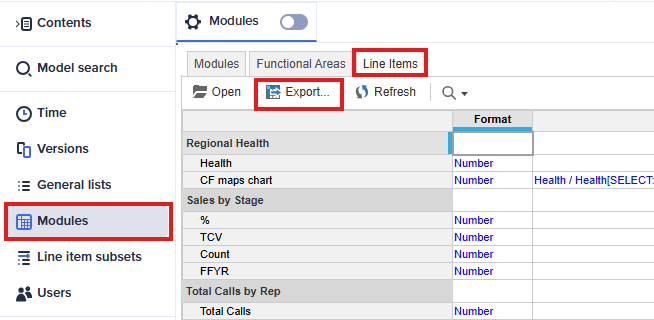
Select Modules in the model settings bar, then select the Line Items tab and click Export.
Open the Labels tab, check the Include Row Label Headers checkbox and click Run Export.
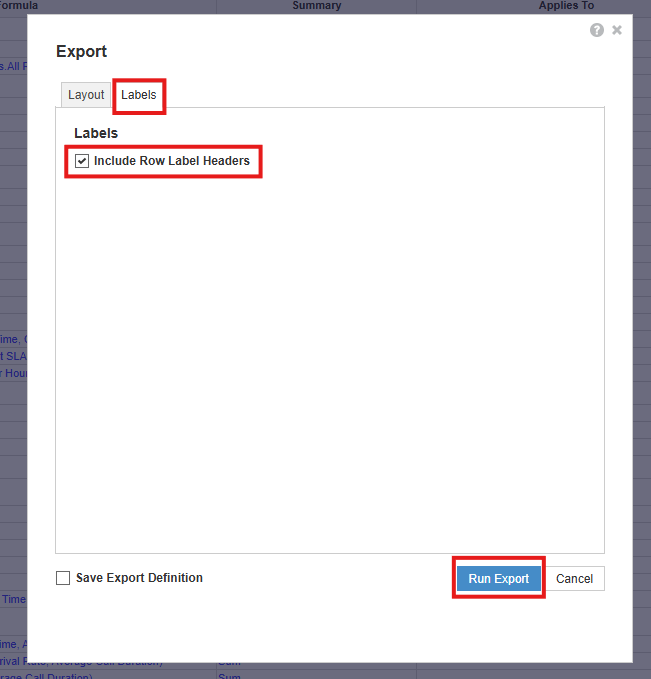
You can upload the exported CSV as is or add/remove columns as needed before uploading.
* Sometimes the exported CSV may contain some errors. In that case, export the file as Excel Open XML (.xlsx) not formatted and convert it to CSV before uploading.
Mode (Chain / Manual)
Chain: Shows the entire dependency chain around the selected line item.
Manual: Lets you expand/collapse the links by clicking line item nodes (click once to expand connected nodes, click again to collapse).
Show (checkboxes)
Selected leads to: When checked, shows upstream items that depend on the selected line item.
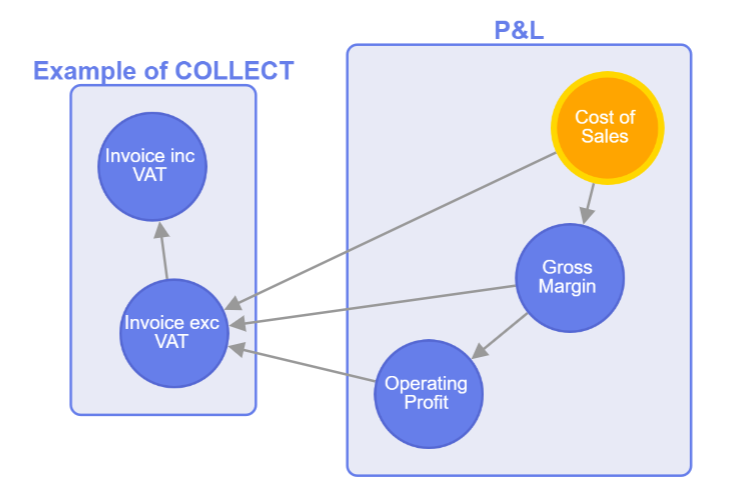
Leads to selected: When checked, shows downstream items that the selected line item depends on.
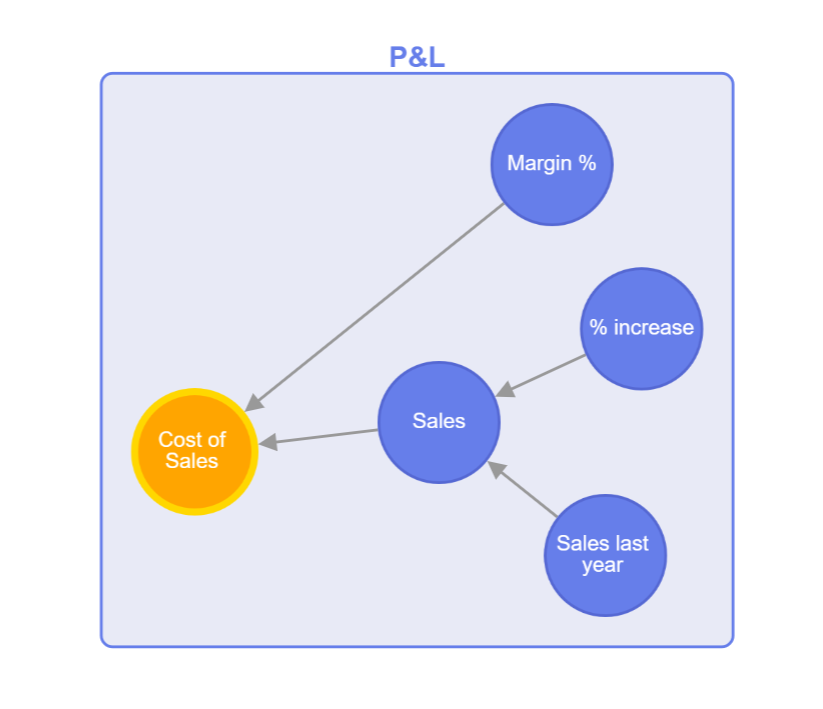
You can use both checkboxes together to see the full context of the selected line item.
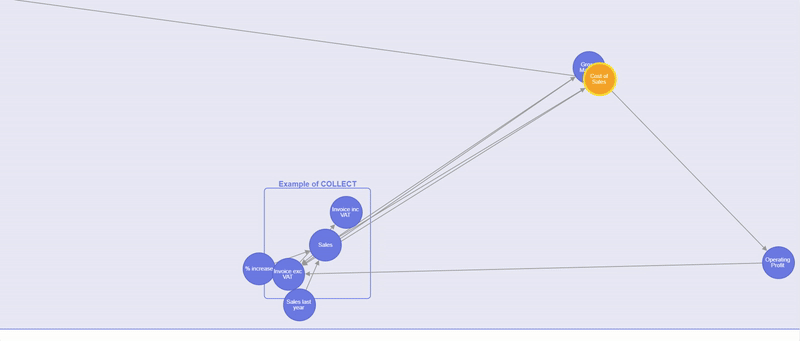
Organize Button
Re-orders the currently visible nodes to pack them closer together while avoiding overlaps.
Fit View Button
Zooms and pans the graph so all currently visible nodes fit in the viewport.
Start here
Upload a CSV to build your model map.
Tip: required columns are: Modules with Line Items, Referenced By, Module Name.